
[ภาษาไทย] วิธีติดตั้งผ่านแอปพลิเคชัน | วิธีติดตั้งผ่านเว็บไซต์
[EN] Instructions for Web Browser | Instructions for Mobile App
วิธีติดตั้งผ่านแอปพลิเคชัน
1. ไปที่หน้าแรกของแอปพลิเคชัน กดที่เมนู 'ตั้งค่า' ด้านซ้ายบนของหน้าจอ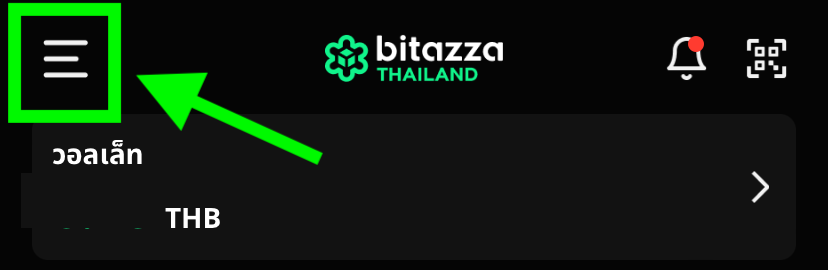
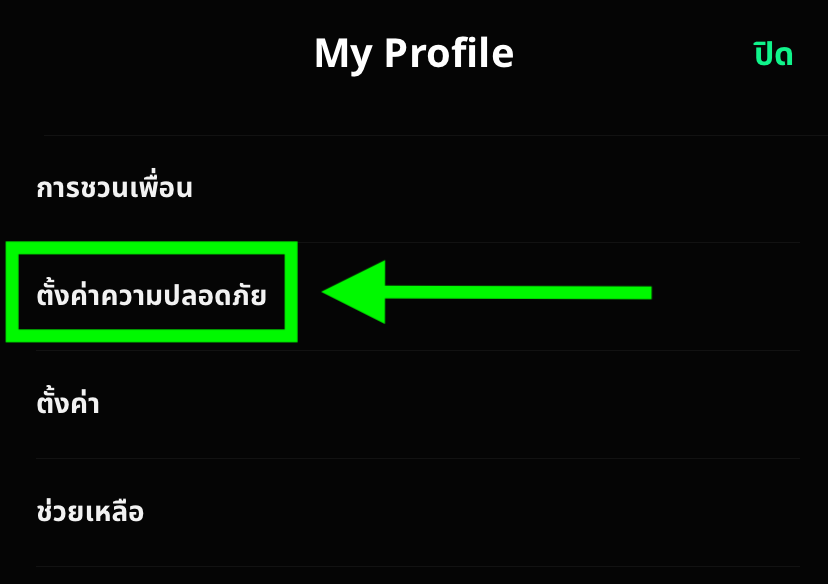
2. เลือก 'ตั้งค่าความปลอดภัย'
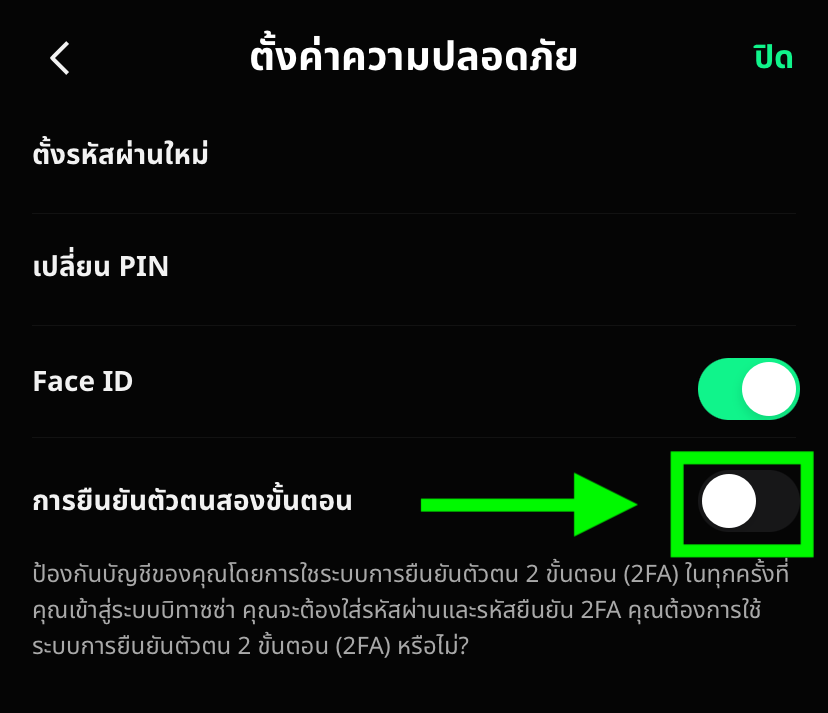
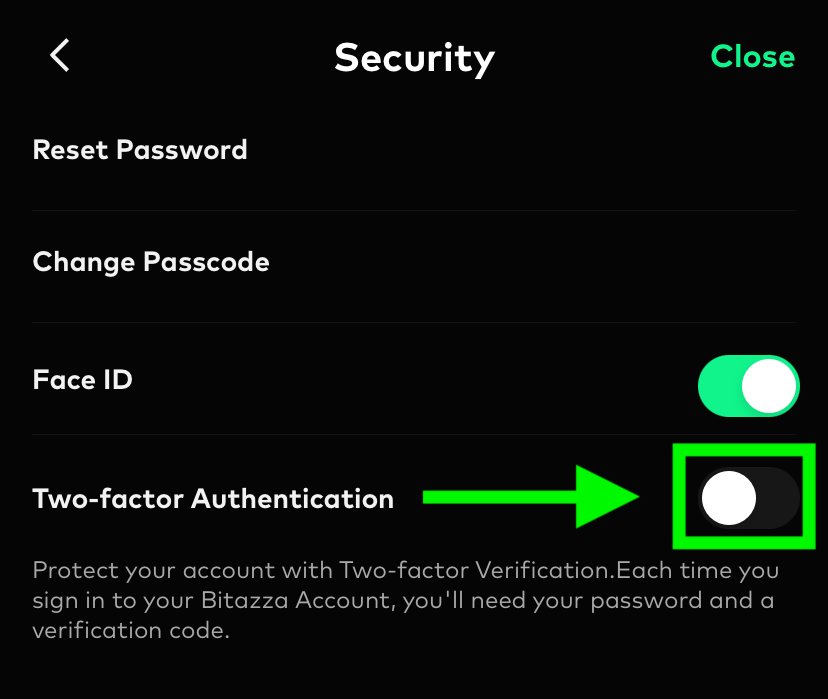
3. กดเปิดใช้งาน 'การยืนยันตัวตนสองขั้นตอน'
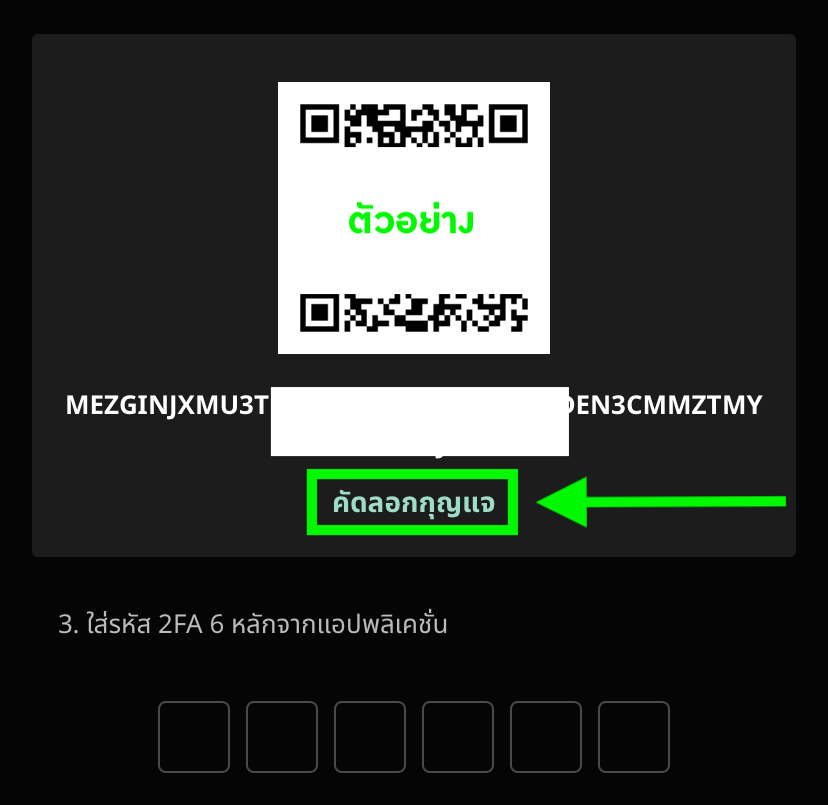
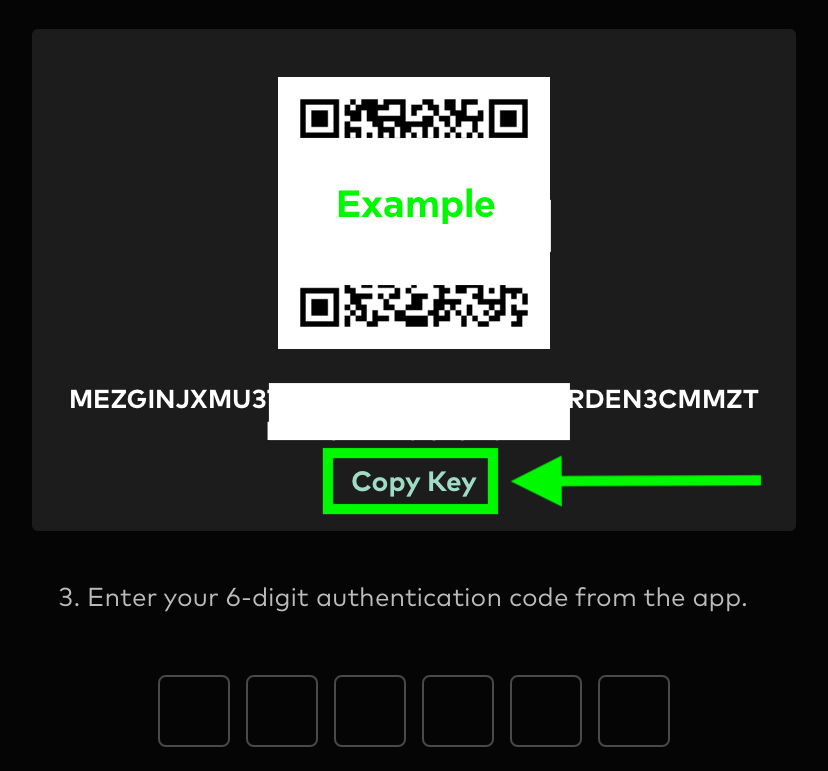
4. กดที่ 'คัดลอกกุญแจ'
5. ดาวน์โหลดแอปยืนยันสองขั้นตอน (2FA)
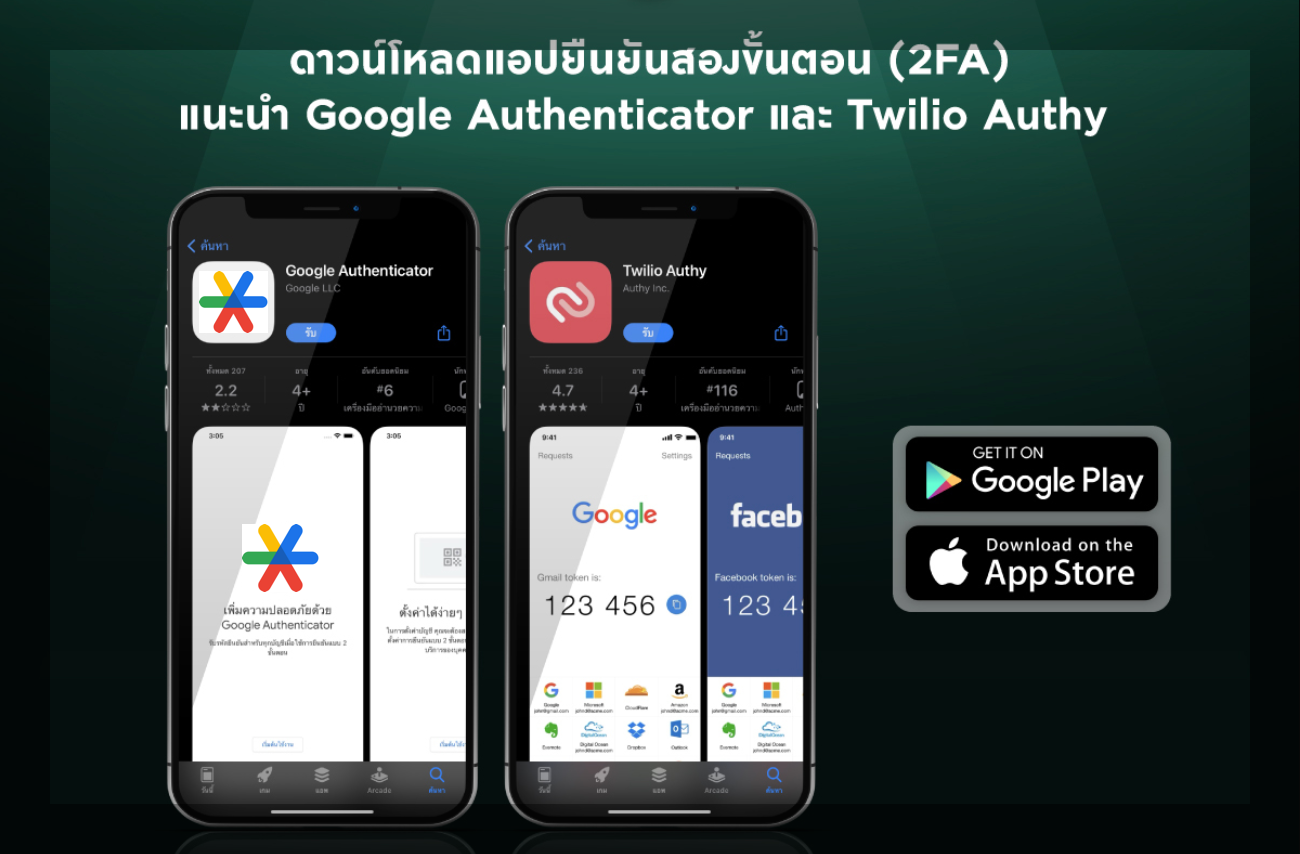
แนะนำ Google Authenticator และ Twilio Authy
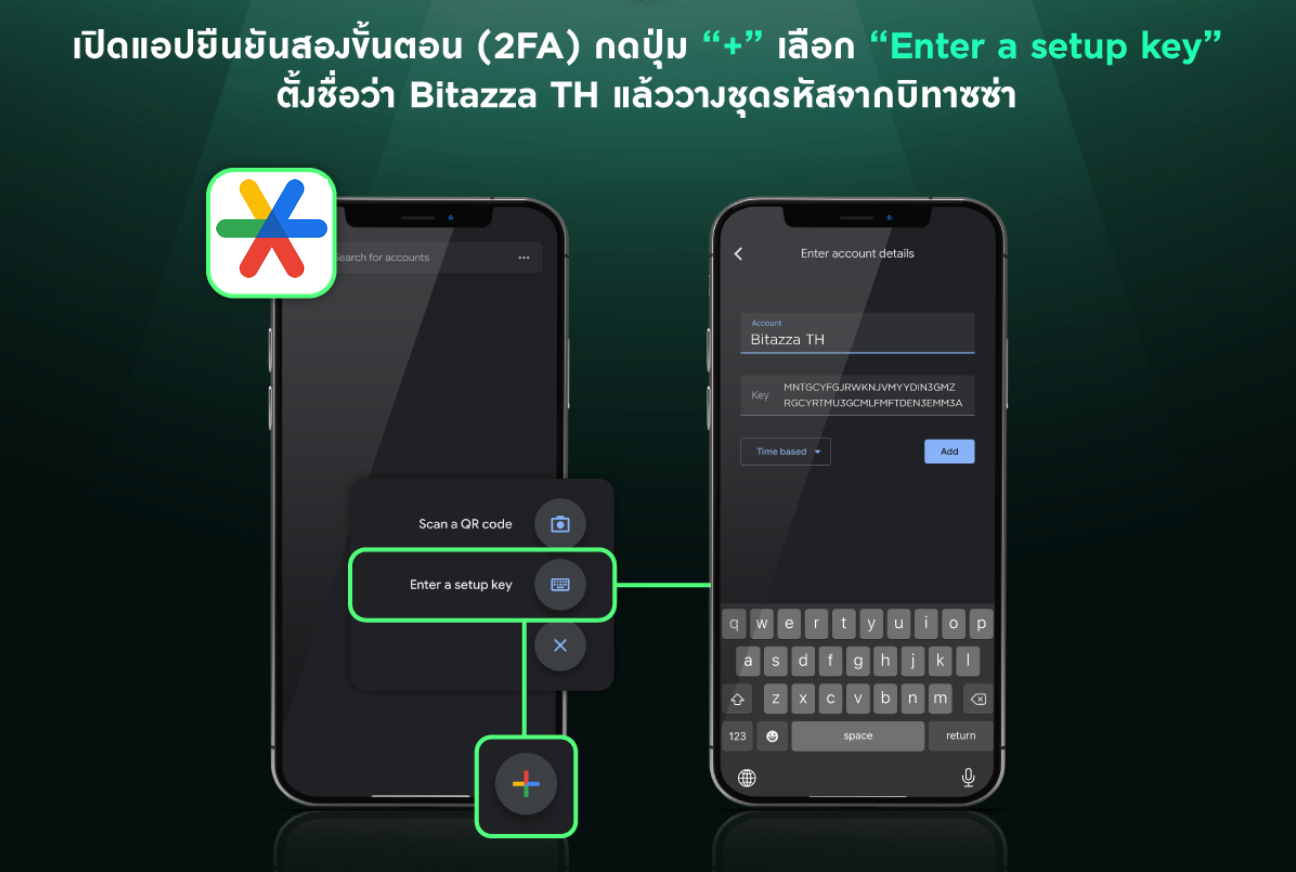
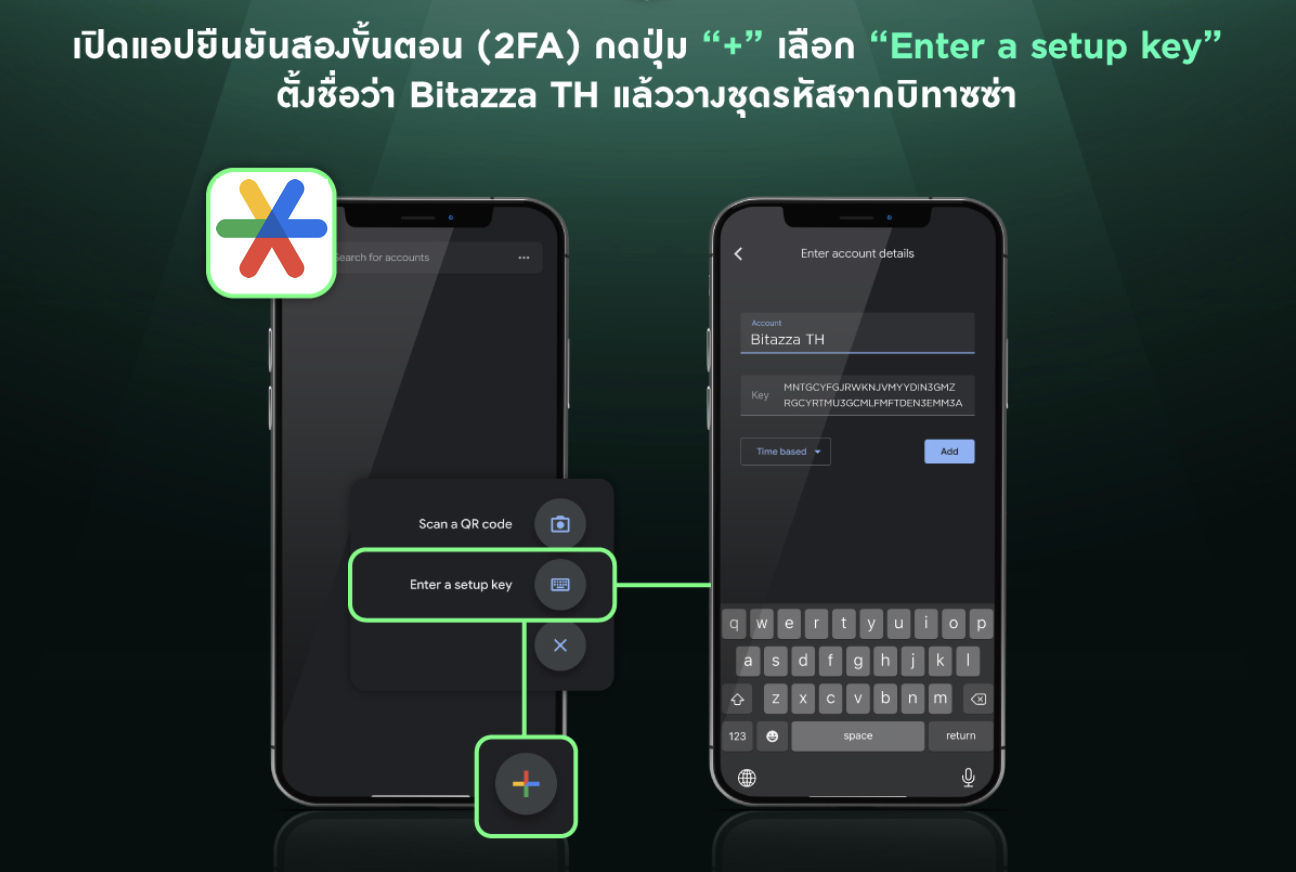
6. เปิดแอปยืนยันสองขั้นตอน (2FA) เพื่อติดตั้ง กดปุ่ม '+' เลือก 'Enter a setup key' ตั้งชื่อว่า Bitazza TH แล้ววางชุดรหัสจากบิทาซซ่าหรือเลือก 'Scan a QR Code' เพื่อถ่ายด้วยกล้อง
เสร็จสมบูรณ์เสร็จสมบูรณ์เพื่อถ่ายด้วยกล้อง
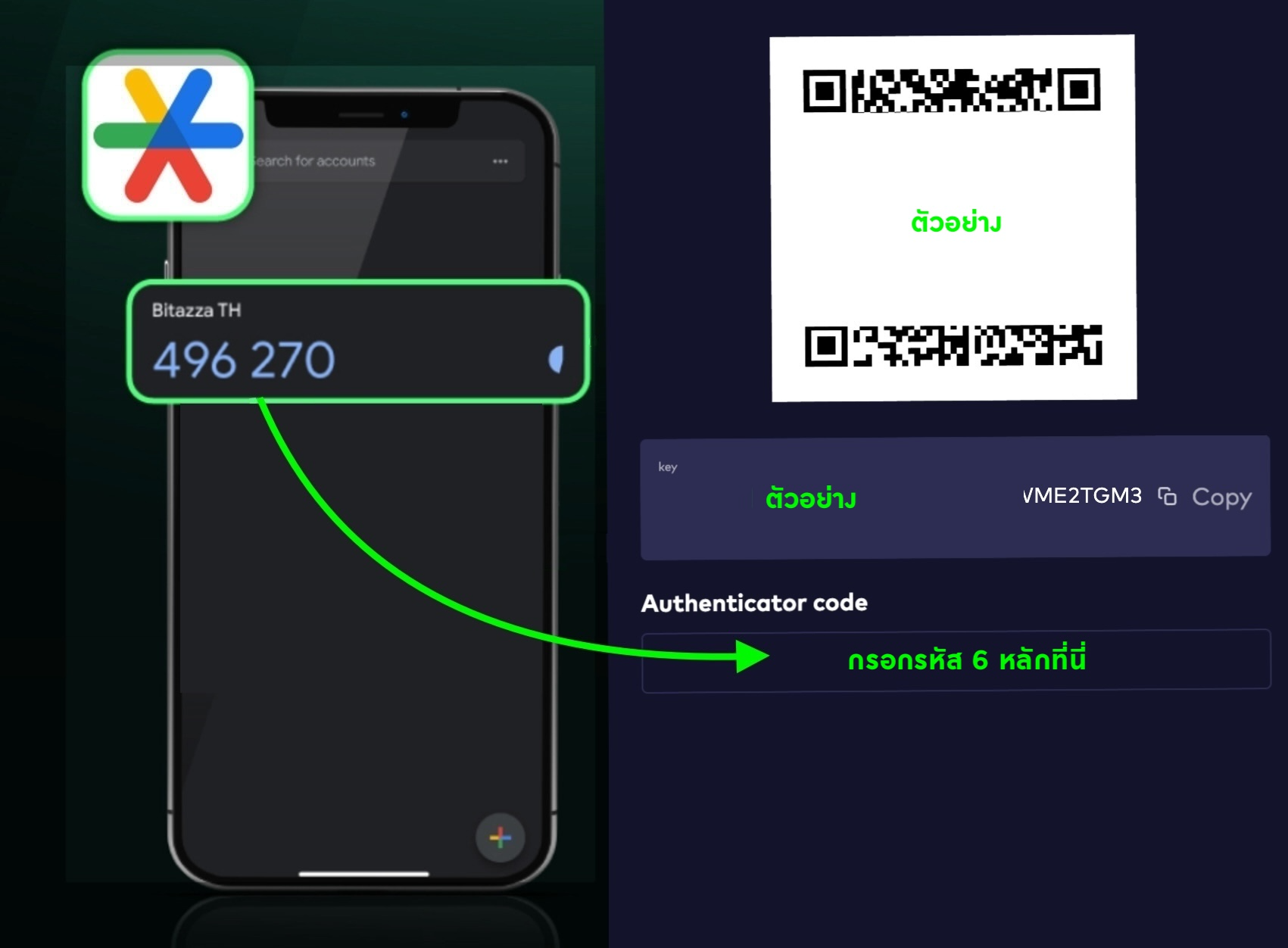
โปรดอย่าลบแอปพลิเคชัน 2FA ของคุณ เนื่องจากคุณต้องทำการกรอกรหัส 2FA วันละ 1 ครั้ง ซึ่งรหัสผ่าน 6 หลักจะเปลี่ยนแปลงทุกๆ 30 วินาที โปรดดำเนินการให้ทันเวลา
เพื่อความปลอดภัยบัญชีของคุณ อย่าเปิดเผย Key หรือ QR Code ในการติดตั้ง 2FA ของคุณแก่ผู้อื่น
4. กดที่ 'คัดลอกกุญแจ'
5. ดาวน์โหลดแอปยืนยันสองขั้นตอน (2FA)
แนะนำ Google Authenticator และ Twilio Authy
โปรดอย่าลบแอปพลิเคชัน 2FA ของคุณ เนื่องจากคุณต้องทำการกรอกรหัส 2FA วันละ 1 ครั้ง ซึ่งรหัสผ่าน 6 หลักจะเปลี่ยนแปลงทุกๆ 30 วินาที โปรดดำเนินการให้ทันเวลา
วิธีติดตั้งผ่านเว็บไซต์
1. คลิกที่สัญลักษณ์รูปคนจากด้านขวาบนของหน้าจอ

2. ไปที่หัวข้อ 'Profile & Security' เลื่อนลงด้านล่างเล็กน้อยและกดที่ 'Enable Google 2FA'

3. หน้าจอจะแสดงหน้าการเปิดใช้งาน 2FA คุณสามารถเลือกคัดลอก Key หรือสแกน QR Code เพื่อเปิดใช้งาน 2FA ด้วยแอปพลิเคชัน Google Authenticator หรือ Authy
4. ดาวน์โหลดแอปยืนยันสองขั้นตอน (2FA)
แนะนำ Google Authenticator และ Twilio Authy
5. เปิดแอปยืนยันสองขั้นตอน (2FA) เพื่อติดตั้ง กดปุ่ม '+' เลือก 'Enter a setup key' ตั้งชื่อว่า Bitazza TH แล้ววางชุดรหัสจากบิทาซซ่าหรือเลือก 'Scan a QR Code' เพื่อถ่ายด้วยกล้อง
6. นำรหัสจากแอปพลิเคชัน Google Authenticator หรือ Authy มากรอกเพื่อให้การติดตั้ง 2FA เสร็จสมบูรณ์

โปรดอย่าลบแอปพลิเคชัน 2FA ของคุณ เนื่องจากคุณต้องทำการกรอกรหัส 2FA วันละ 1 ครั้ง ซึ่งรหัสผ่าน 6 หลักจะเปลี่ยนแปลงทุกๆ 30 วินาที โปรดดำเนินการให้ทันเวลา
เพื่อความปลอดภัยบัญชีของคุณ อย่าเปิดเผย Key หรือ QR Code ในการติดตั้ง 2FA ของคุณแก่ผู้อื่นInstructions for Mobile App
1. Click on the 'Settings' menu located at the top left corner of the dashboard.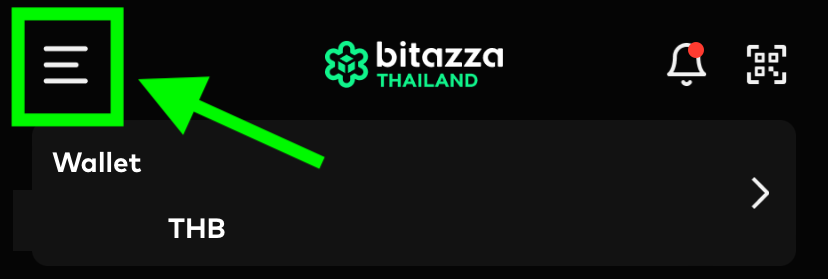
2. Select 'Security.'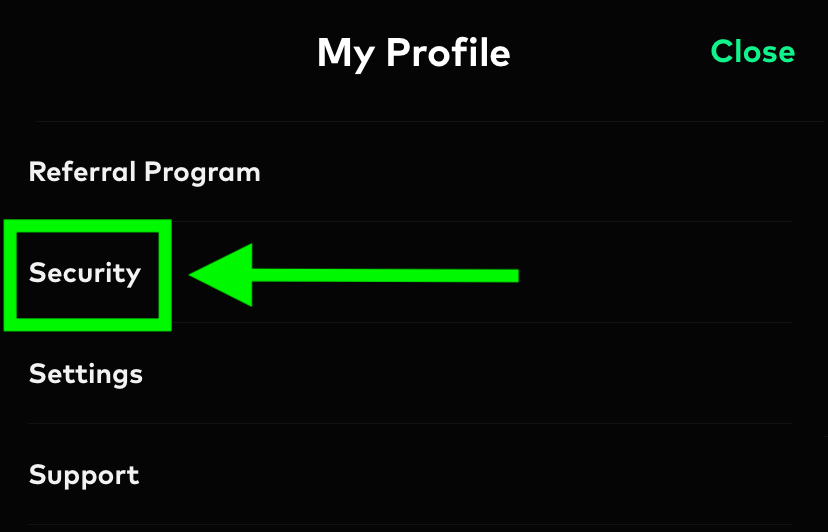
3. Click to enable the Two-factor Authentication.
4. Click 'Copy Key.'
5. Download the 2FA application
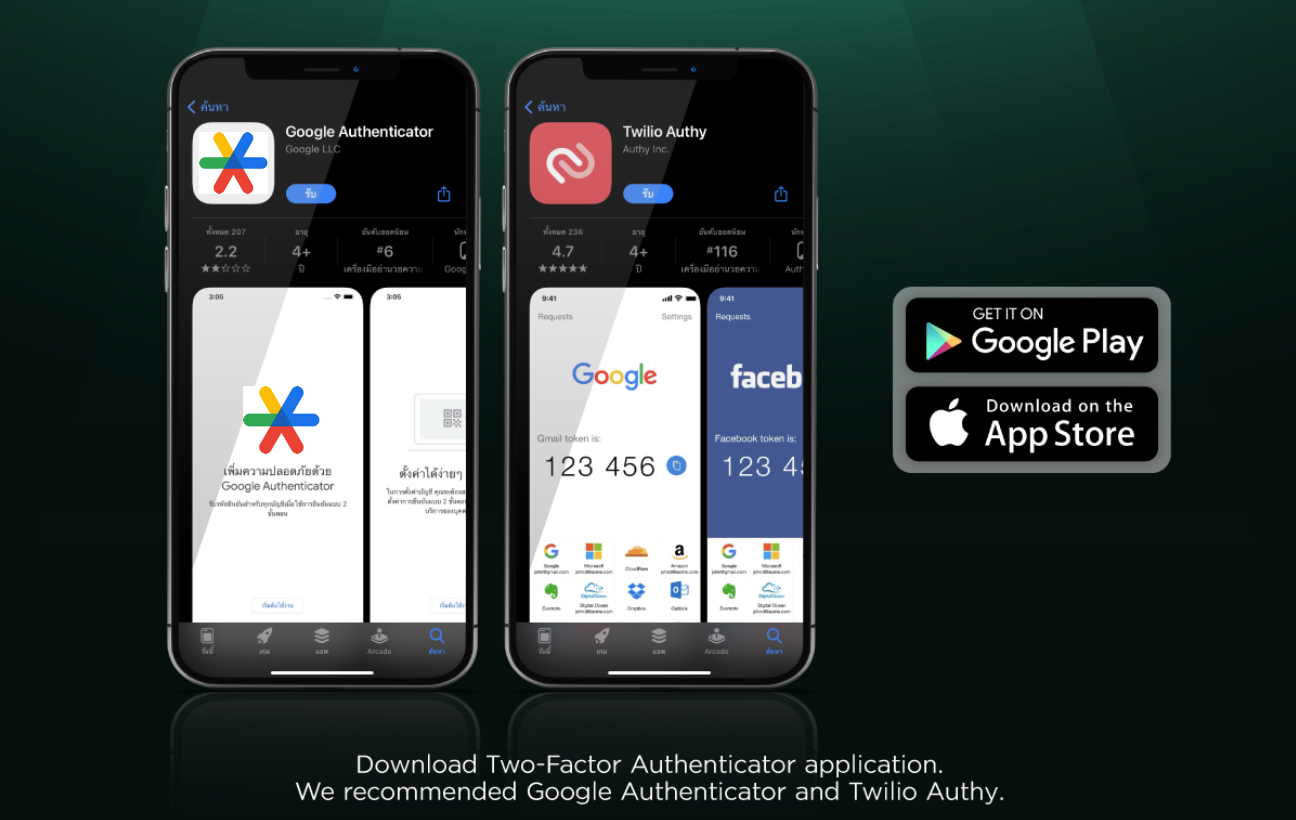
We recommended Google Authenticator and Twilio Authy
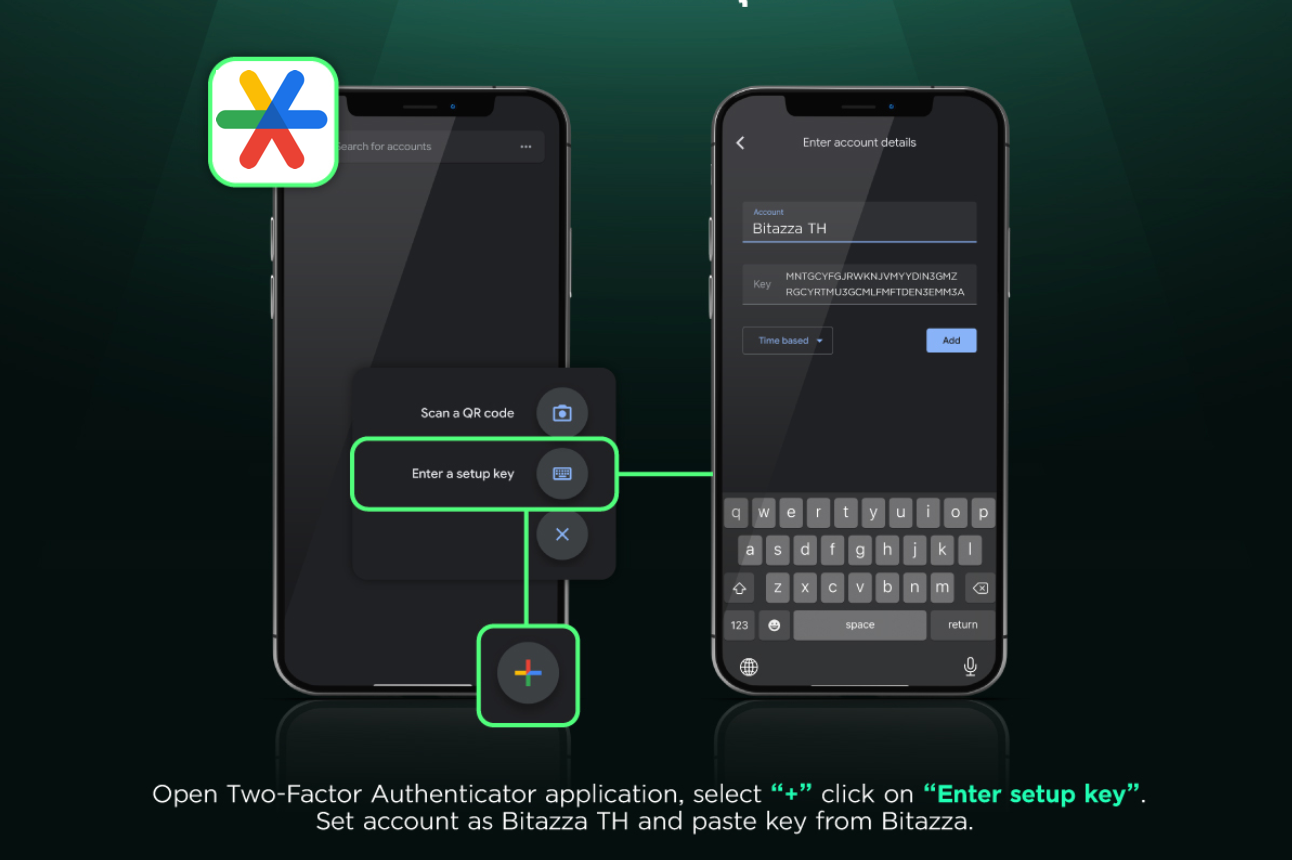
6. Open the 2FA application, select '+' click on 'enter setup key'. Set account as Bitazza TH and paste the key or select 'Scan a QR code' to capture
7. Enter the code generated by your Google Authenticator or Authy to complete the process
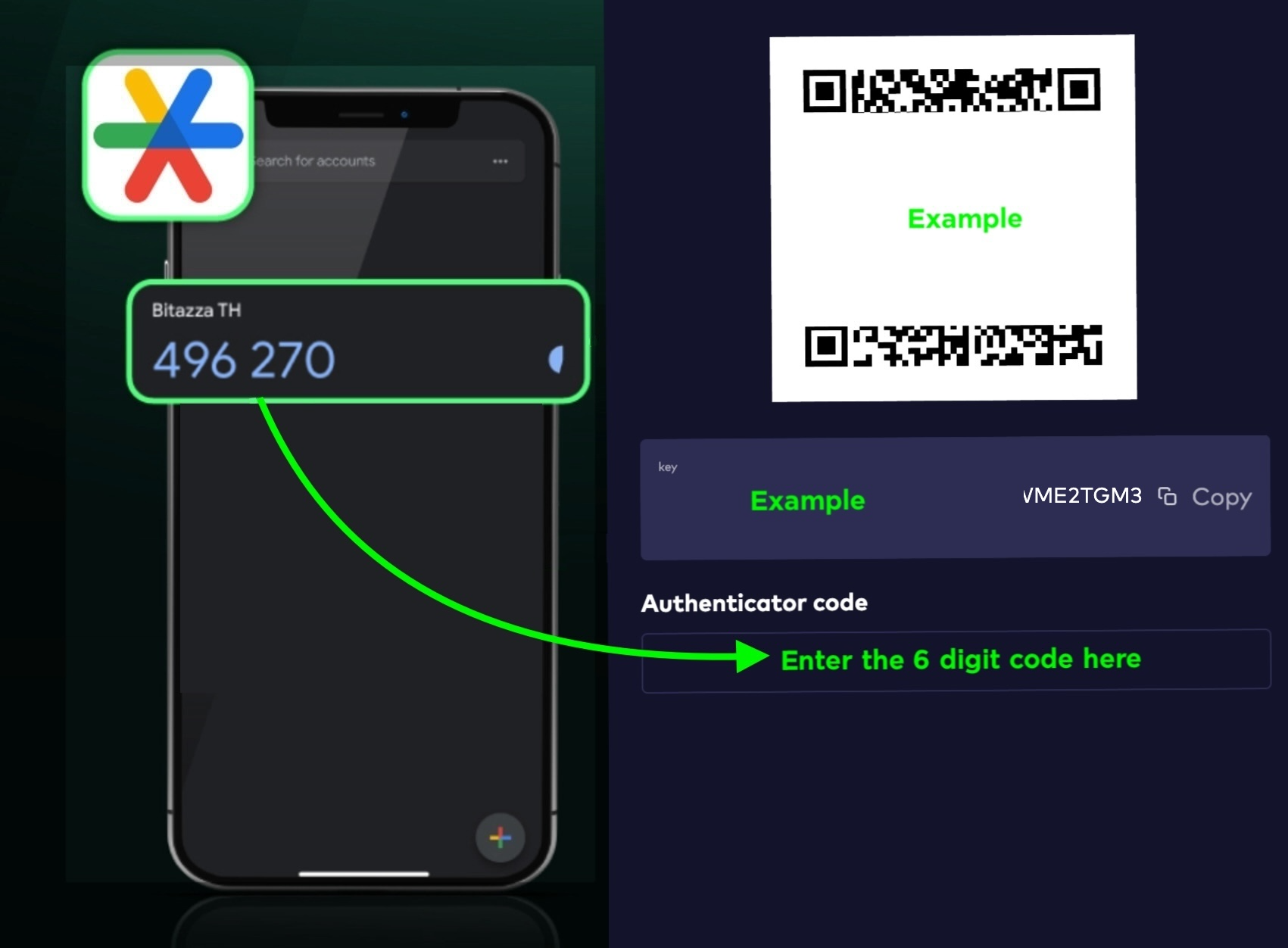
You should not delete the authenticator application, as you will need to enter the 2FA code once a day. The 6-digit code changes every 30 seconds, so please make sure to enter it on time
For the security of your account, do not share the 2FA setup key or QR code with anyone
We recommended Google Authenticator and Twilio Authy
You should not delete the authenticator application, as you will need to enter the 2FA code once a day. The 6-digit code changes every 30 seconds, so please make sure to enter it on time
Instructions for Web Browser
1. Click on your account icon at the top-right of the website 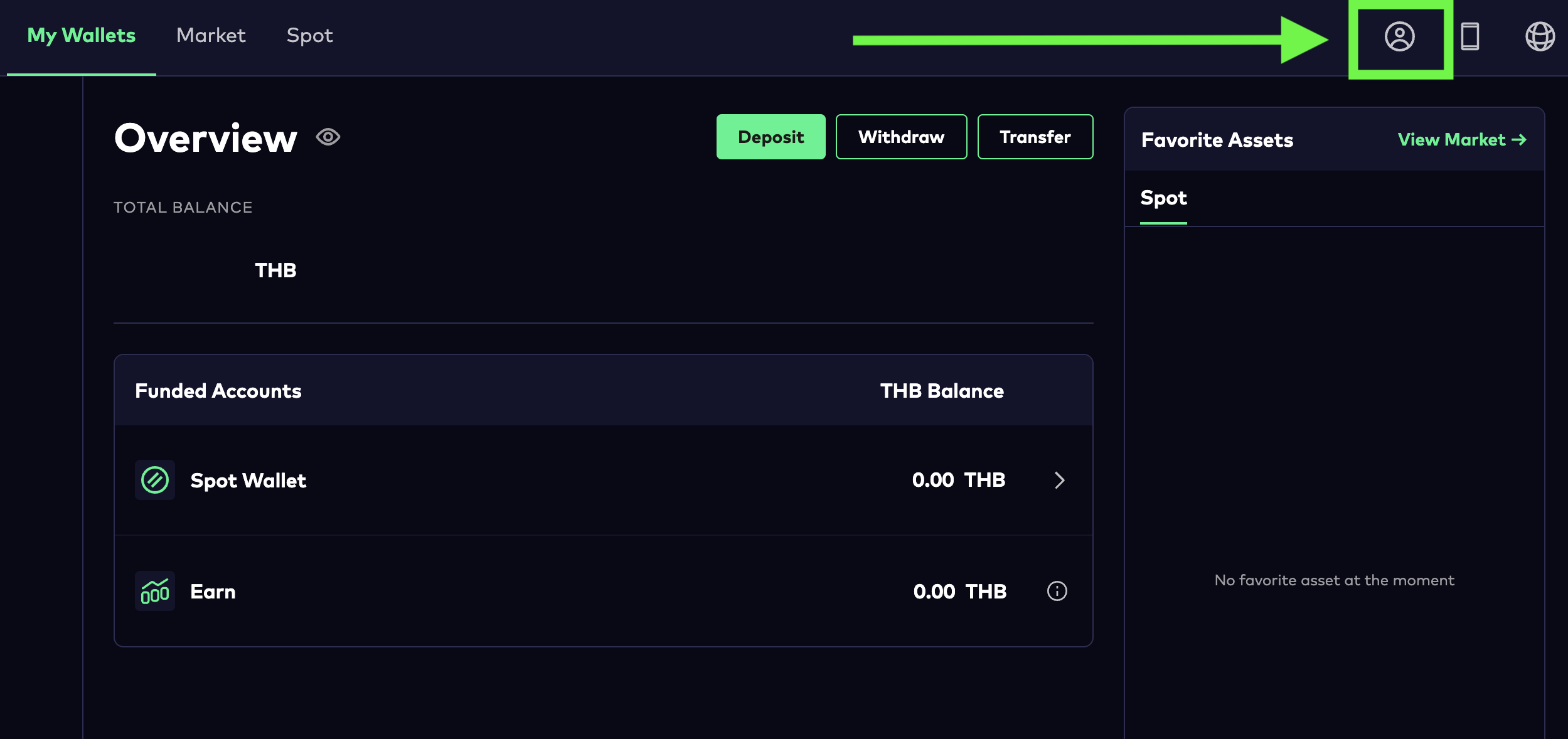
2. Select 'Profile & Security,' scroll down, and click 'Enable Google 2FA'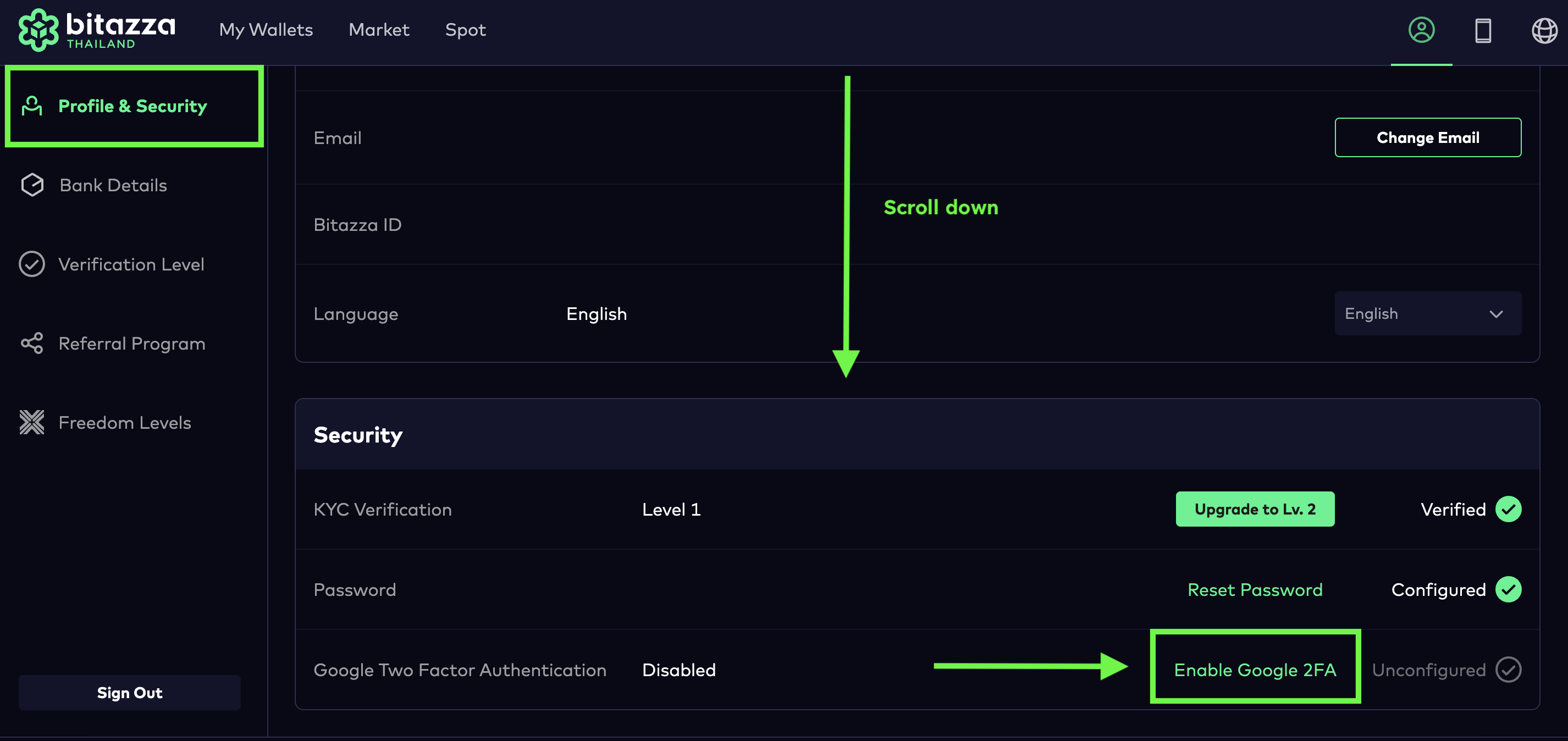
3. The screen will display a 2FA setup page where you can copy a key or scan a QR code with Google Authenticator or Authy application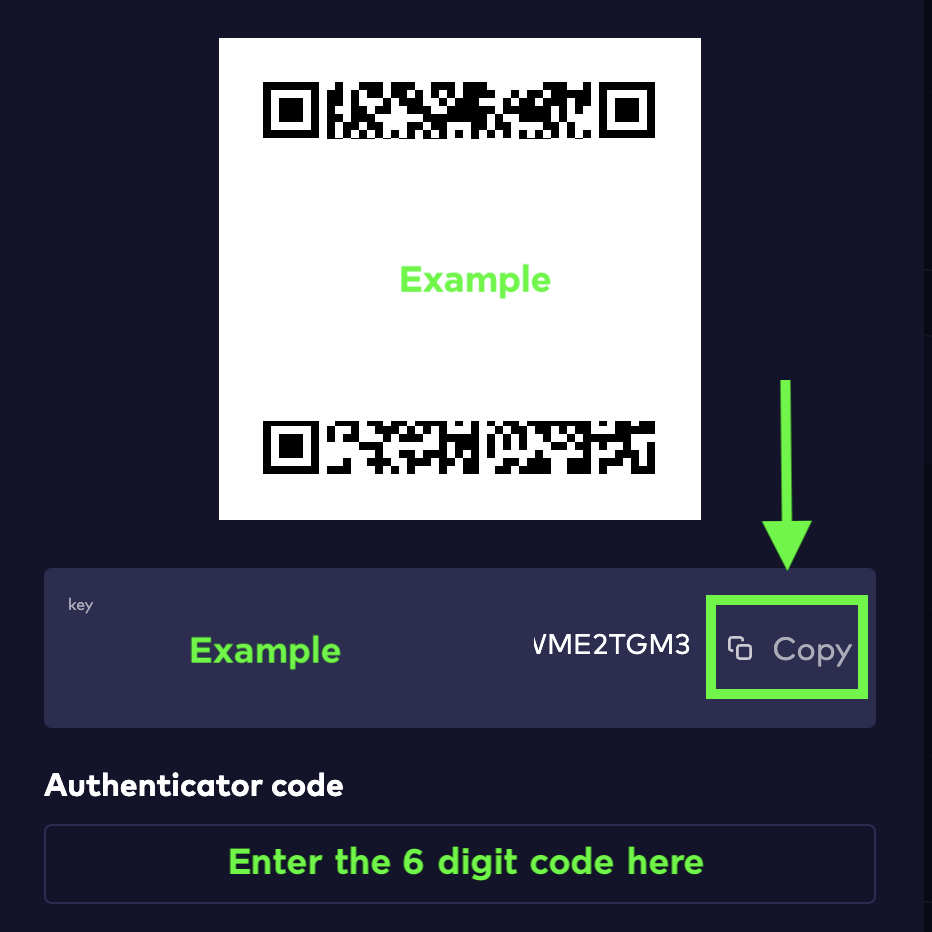
4. Download the 2FA application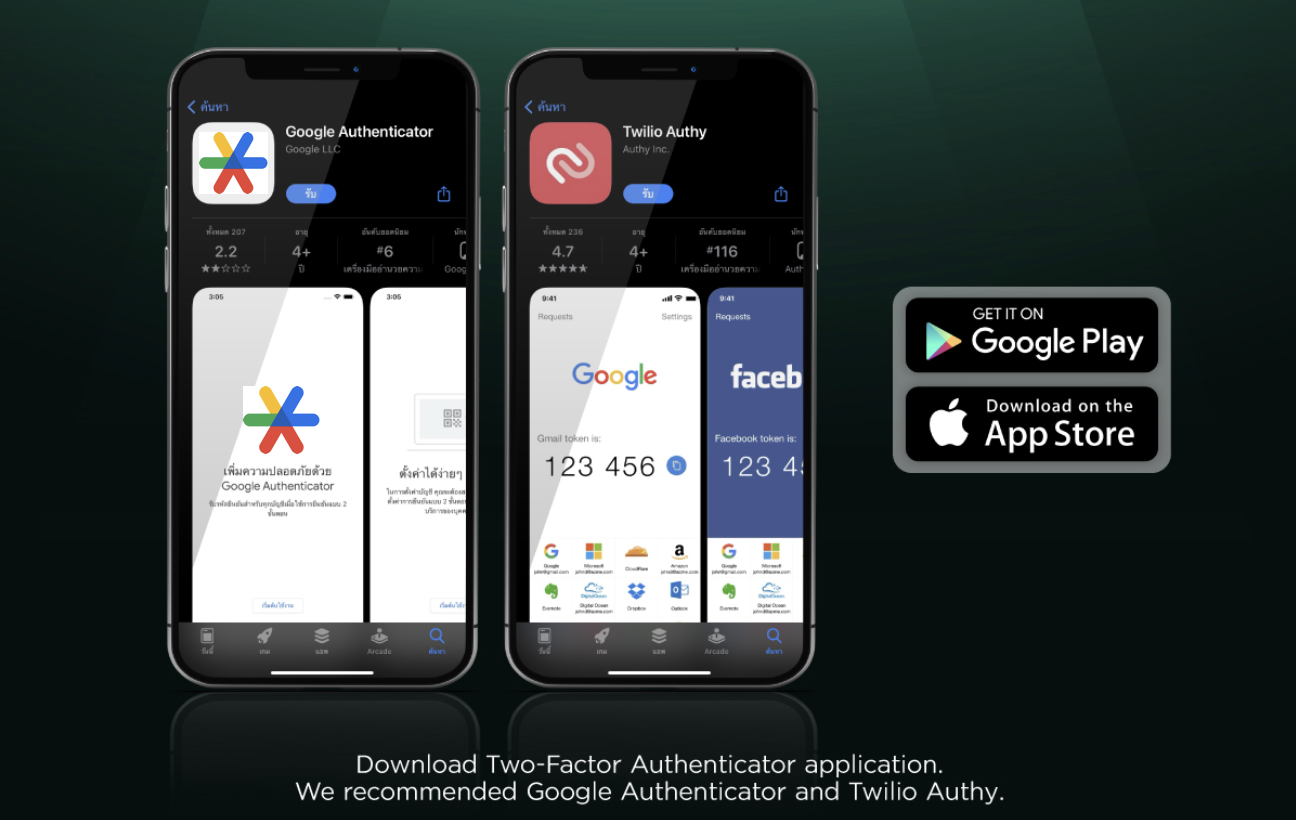
We recommended Google Authenticator and Twilio Authy
5. Open the 2FA application, select '+' click on 'enter setup key'. Set account as Bitazza TH and paste the key or select 'Scan a QR code' to capture
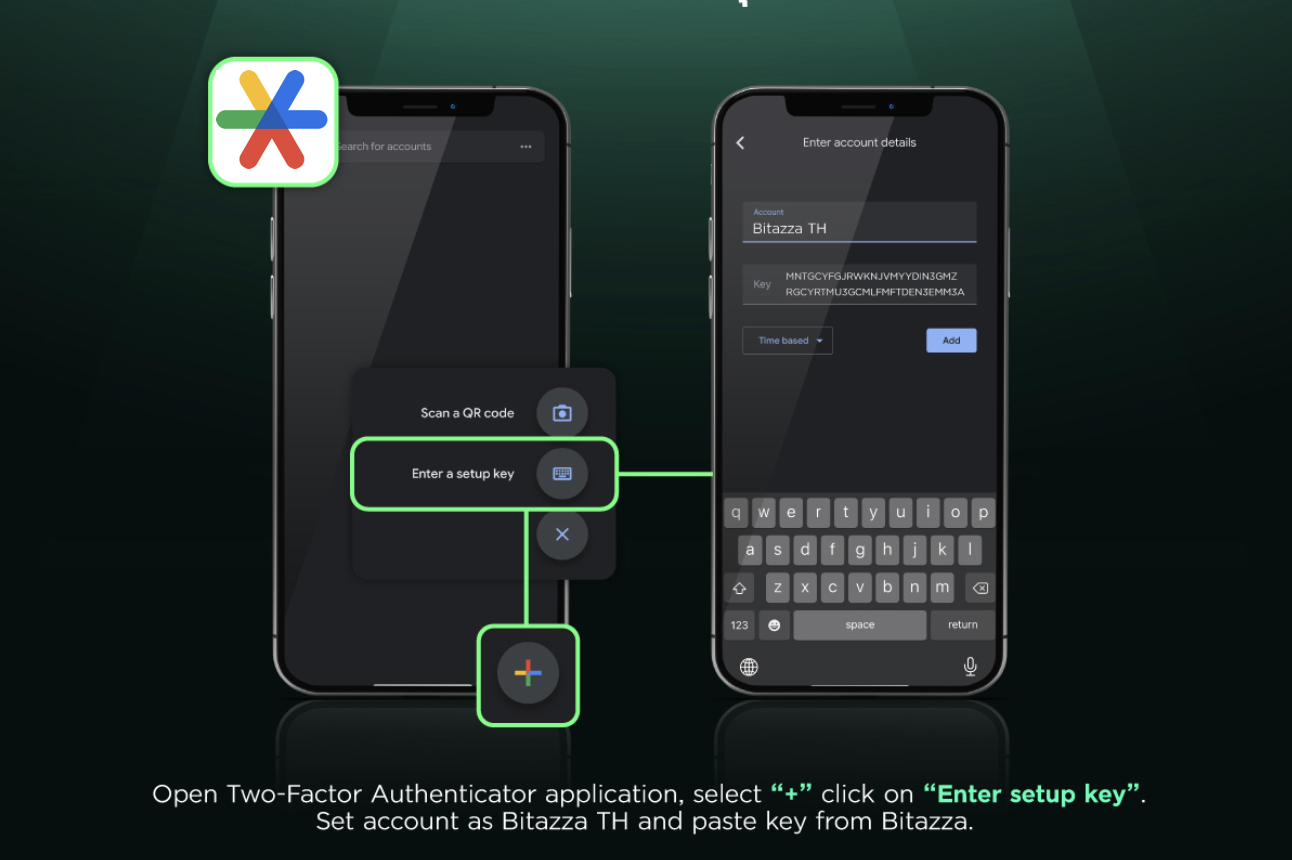
6. Enter the code generated by your Google Authenticator or Authy to complete the process

You should not delete the authenticator application, as you will need to enter the 2FA code once a day. The 6-digit code changes every 30 seconds, so please make sure to enter it on time
For the security of your account, do not share the 2FA setup key or QR code with anyone